Trading Guide
Manual vs Automated Trading
A beginner-friendly guide to understanding the two main approaches to trading. Learn what each method entails, their key differences, and why automation often delivers superior results.
Manual Trading
Manual trading means you analyze the markets yourself, make trading decisions in real-time, and execute trades manually through your broker's platform.
How It Works
- •You monitor charts and analyze market conditions
- •You identify entry and exit points based on your analysis
- •You manually place orders through your broker's interface
- •You manage positions, set stop losses, and take profits yourself
Characteristics
- •Requires constant attention and screen time
- •Decisions influenced by emotions and psychology
- •Vulnerable to fatigue, FOMO, and impulsive actions
- •Execution speed depends on your reaction time
Automated Trading
Automated trading uses algorithms and systems to execute trades based on predefined rules. Signals from TradingView strategies can be automatically copied to your broker account without manual intervention.
How It Works
- •A TradingView strategy generates signals based on predefined rules
- •Webhooks send these signals to a Telegram bot or automation service
- •A signal copier automatically executes trades on your broker account
- •Risk management and position sizing are handled automatically
Characteristics
- •Runs 24/7 without your constant supervision
- •Eliminates emotional decision-making
- •Consistent execution based on tested rules
- •Faster execution speed and reduced slippage
Key Differences
Manual Trading
- •Time-intensive: Requires hours of daily screen time
- •Emotional: Fear and greed influence decisions
- •Inconsistent: Performance varies with mood and fatigue
- •Limited: Can only monitor a few markets simultaneously
Automated Trading
- •Time-efficient: Works while you sleep or focus on other tasks
- •Disciplined: Follows rules without emotional interference
- •Consistent: Executes the same logic every time
- •Scalable: Can trade multiple strategies and markets simultaneously
Why Automated Trading Delivers Better Results
Eliminates Emotions
Fear, greed, and FOMO are the biggest enemies of traders. Automation removes these psychological barriers, ensuring decisions are based on logic, not impulse.
Consistency
Automated systems execute the same rules every time, regardless of market conditions or your emotional state. This consistency is the foundation of long-term profitability.
Speed & Precision
Algorithms react to market conditions in milliseconds, execute trades at optimal prices, and manage risk with mathematical precision—far beyond human capabilities.
Learn to Automate TradingView Signals
Interested in setting up automated signal copying from TradingView to your broker? I offer personalized one-on-one training to help you build your automation system.
What You'll Learn
- •How to set up TradingView webhooks
- •Configuring Telegram bots for signal reception
- •Connecting signals to your broker account
- •Setting up risk management and position sizing
- •Troubleshooting and optimization tips
Training Details
Duration
Approximately 1 hour
Price
100€
Format
One-on-one video call (Zoom/Teams)
Additional Costs
Telegram signal copier service fees (varies by provider)
How to Get Started
Send us a pre-filled email with your contact details and preferred training time. We'll get back to you within 24 hours to schedule your session.
Request Training SessionFTMO-Anleitung / FTMO Setup Guide
FTMO Challenge mit TradingView verbinden / Connect your FTMO Challenge to TradingView
Eine kurze visuelle Anleitung für den FTMO-TradingView-Workflow. / A short visual walkthrough for the FTMO TradingView workflow.
Video-Anleitung / Video walkthrough
Sieh dir die Verbindung von FTMO, TradingView und OANDA im Video an. / Watch the FTMO, TradingView, and OANDA connection in the video.
Wichtig: Für dieses Setup ausschließlich OANDA-Assets verwenden. Gib Zugangsdaten nur in den offiziellen FTMO- oder OANDA-Fenstern ein. / Important: use OANDA assets only for this setup. Enter credentials only in the official FTMO or OANDA windows.
- 1
FTMO Challenge für TradingView kaufen / Purchase an FTMO Challenge for TradingView
Wähle beim Kauf die TradingView-Plattform für deine Challenge. / When purchasing, select the TradingView platform for your Challenge.
- 2
„Credentials“ öffnen / Open “Credentials”
Öffne im FTMO Client Area deine TradingView-Challenge und klicke auf „Credentials“. / In the FTMO Client Area, open your TradingView Challenge and click “Credentials”.
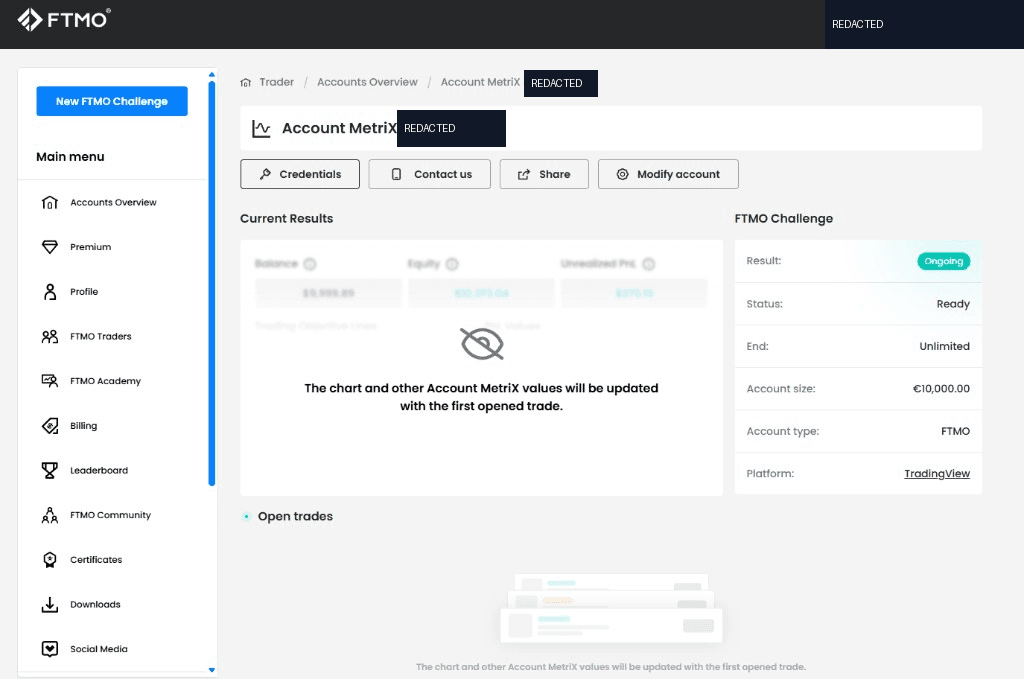
Öffne dein TradingView-Challenge-Konto und wähle „Credentials“. / Open your TradingView Challenge account and select “Credentials”. - 3
Die angezeigten Verbindungsschritte ausführen / Follow the connection steps shown
Klicke auf „Continue to TradingView“, öffne in TradingView die Charts und wähle unter „Trade“ den Broker OANDA. / Click “Continue to TradingView”, open Charts in TradingView, and select OANDA under “Trade”.
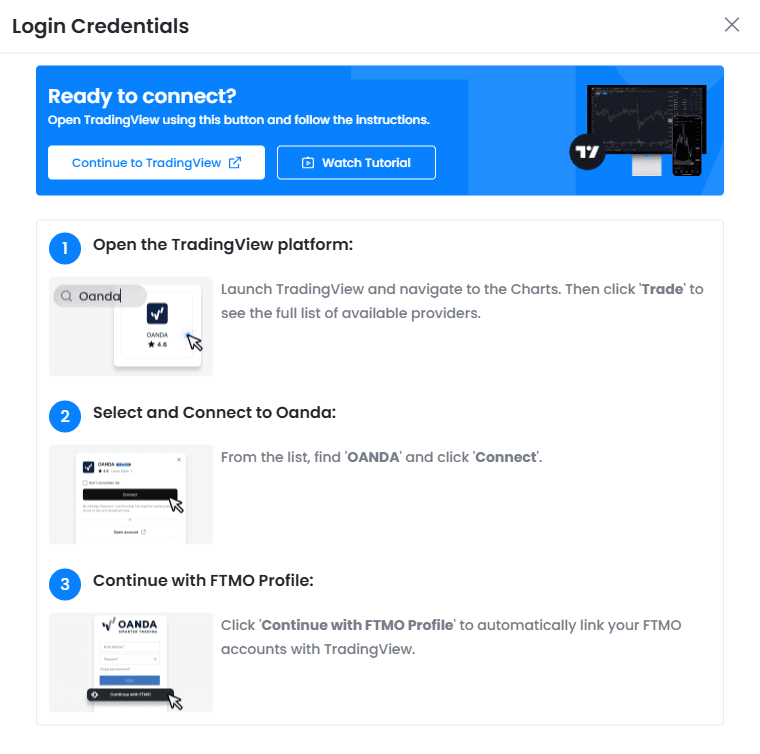
FTMO zeigt dir die nächsten Schritte für die Verbindung. / FTMO shows the next steps for the connection. 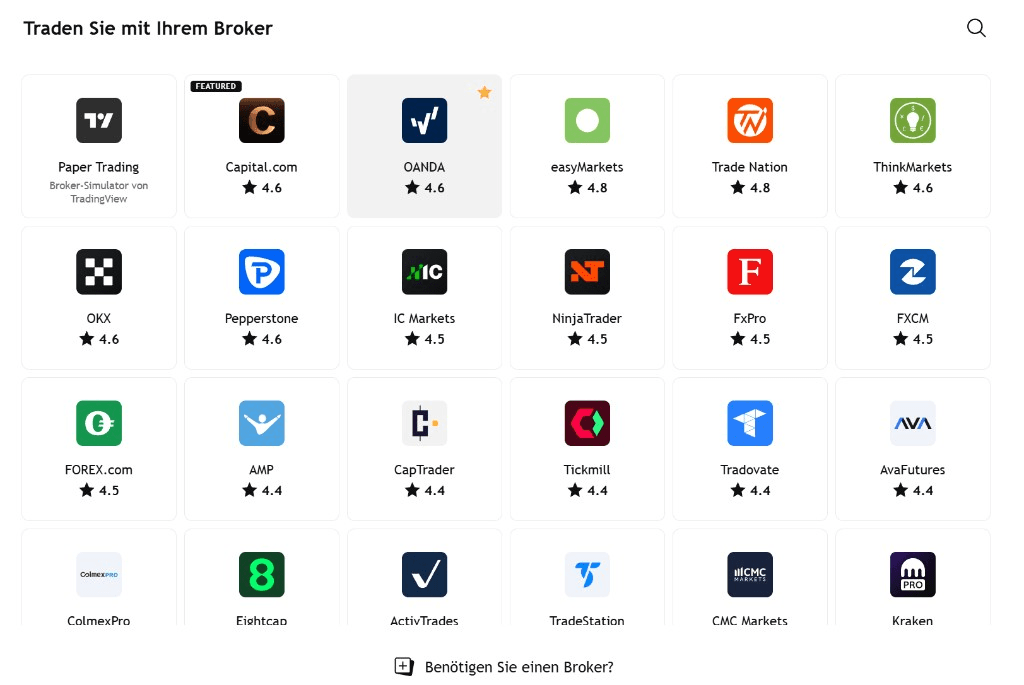
Suche „OANDA“ und wähle „Connect“. / Search for “OANDA” and select “Connect”. 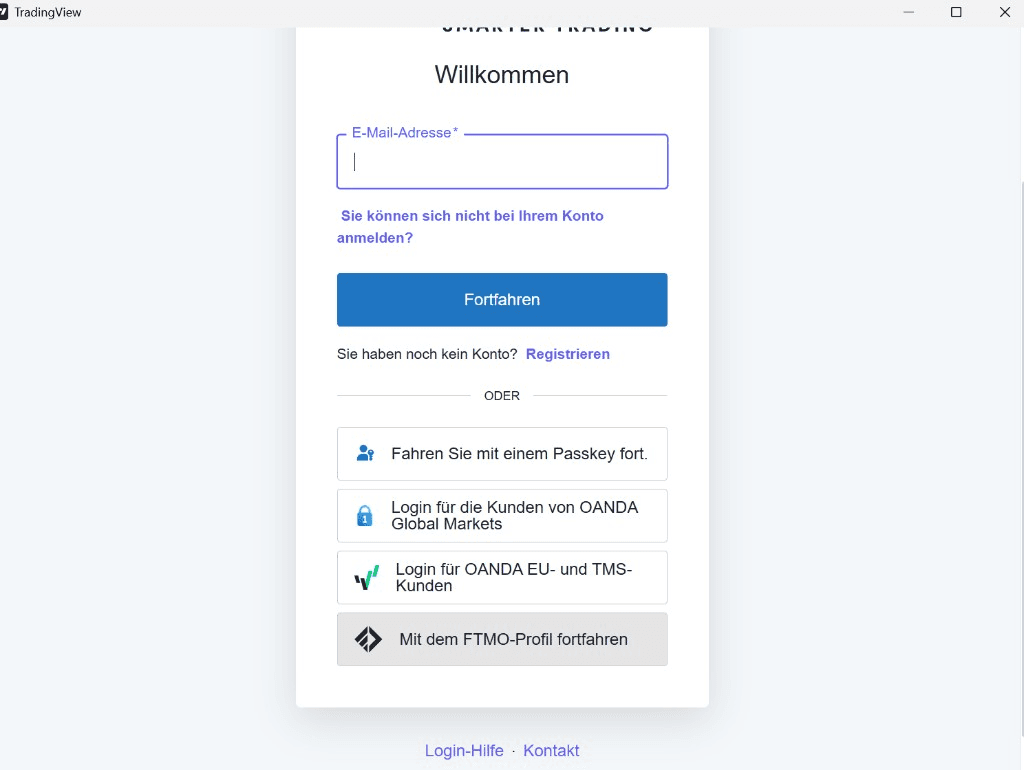
Melde dich im offiziellen OANDA-Fenster an. / Sign in in the official OANDA window. 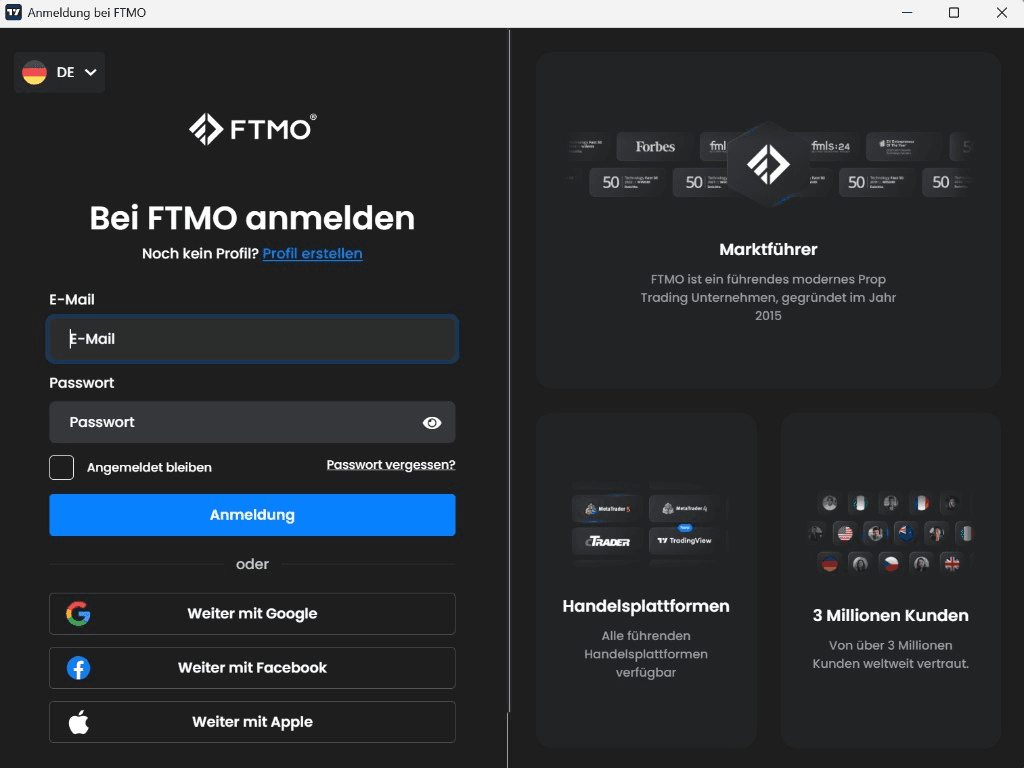
Wähle anschließend „Mit dem FTMO-Profil fortfahren“. / Then select “Continue with FTMO Profile”. - 4
Nur OANDA-Assets verwenden / Use OANDA assets only
Wähle für Symbole und Marktdaten immer OANDA. Anbieter-Symbole können sich unterscheiden — prüfe das Symbol vor dem Erstellen eines Alerts. / Always choose OANDA for symbols and market data. Provider symbols can differ, so verify the symbol before creating an alert.
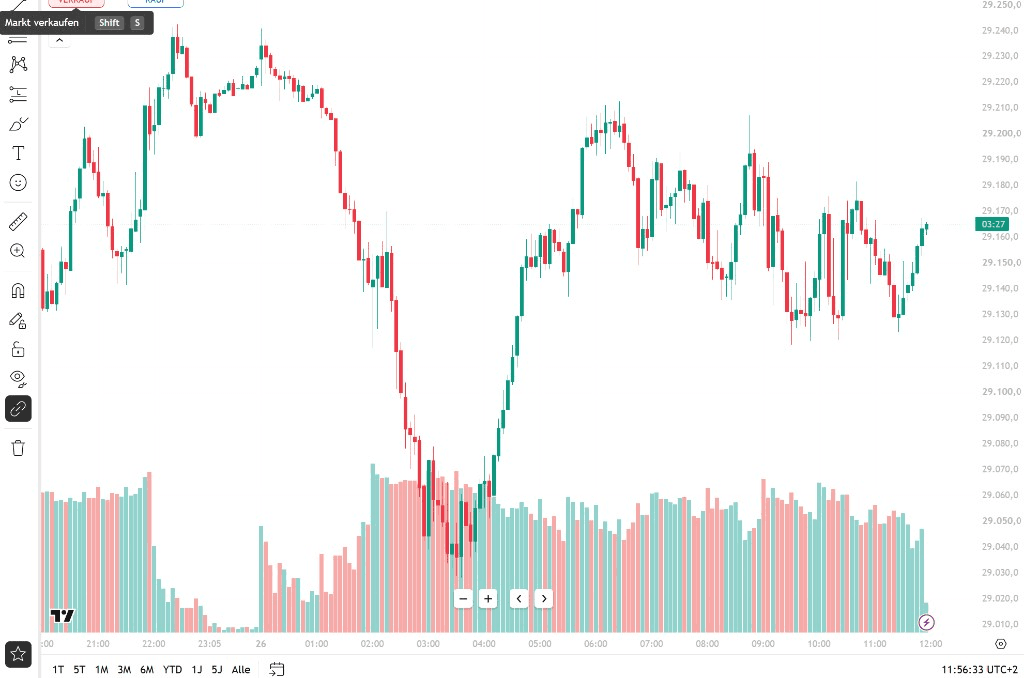
Beispielhafte Chartansicht: Für FTMO nur ein OANDA-Symbol verwenden. / Illustrative chart view: use an OANDA symbol only for FTMO.
Die Screenshots wurden für diese Anleitung um sichtbare Konto- und Profildaten bereinigt. / The screenshots were sanitized for this guide by removing visible account and profile data.